Sign in on a computer
On a computer you can write, read and import with a bigger screen. There’s no password: your phone approves each sign-in.
- On the computer, open sello.voypalante.com/login. It shows a QR code.
- On your phone, open Sello and tap the laptop icon at the top of the home screen (or Settings › Security › Sign in on a computer). Point the camera at the code.
- The computer shows a number. Your phone shows three: tap the same one.
- Tap Approve with fingerprint. The computer opens your journal.
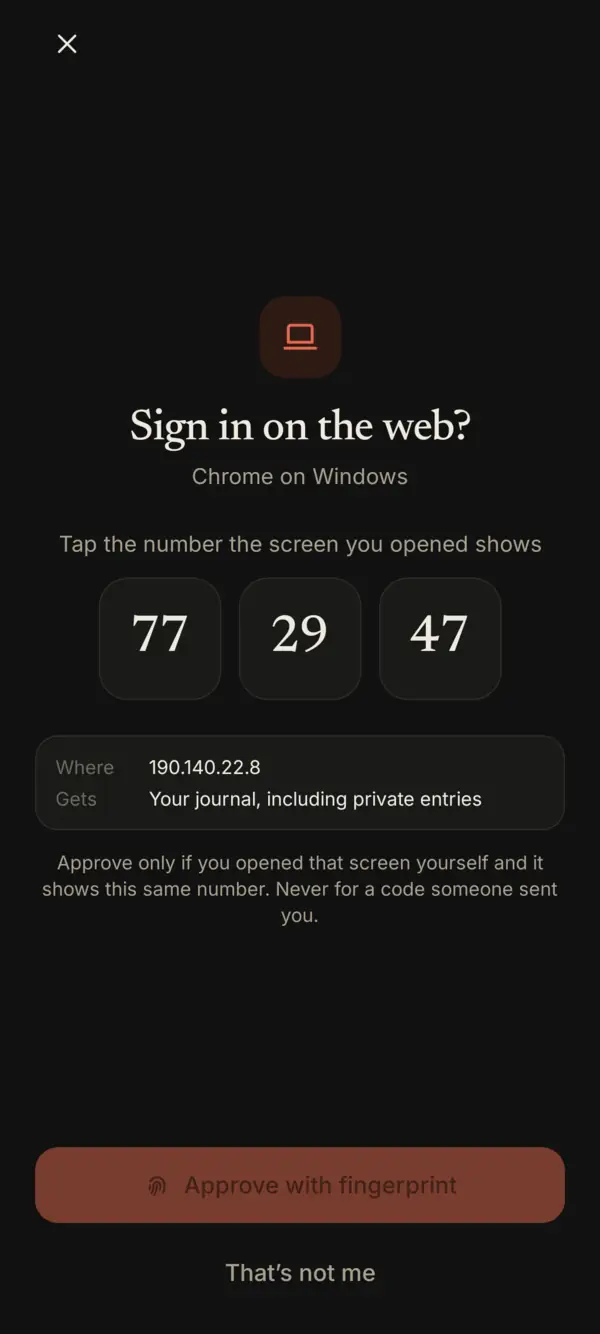
Approve only what you started. If you didn’t open that screen yourself, or the numbers don’t match, tap That’s not me. Never approve a code someone sent you.
Private entries on the computer
After 30 minutes without use, private entries lock again on the computer. Unlock with phone asks your phone the same way, with a number to tap.
How long it lasts
- A browser stays signed in for 14 days.
- When a new browser signs in, your phone tells you. If it wasn’t you, tap Sign it out.
- Settings › Security › Sign out all browsers ends every web session at once.
On a phone’s browser
If you open the sign-in page on the same phone that has Sello, tap Open in Sello and approve it in the app.
Something missing or unclear? Write to us.