Import from Journey
Bring your Journey entries into Sello with their dates, tags and photos. It all happens in your browser: the export is read and encrypted on your computer, and never sent to us as it is.
1. Export from Journey
Journey’s export is part of its paid plan. One month is enough: export, check your entries in Sello, then cancel.
In Journey, open Settings › Data › Cloud Accounts. What you’ll see depends on your account:
- A Google account (synced with Google Drive): Export, and choose ZIP.
- A Journey Drive account: Backup, then download the ZIP.
Use the ZIP. Sello doesn’t read Journey’s PDF, DOCX or EPUB exports.
2. Import it into Sello
- On a computer, sign in at sello.voypalante.com.
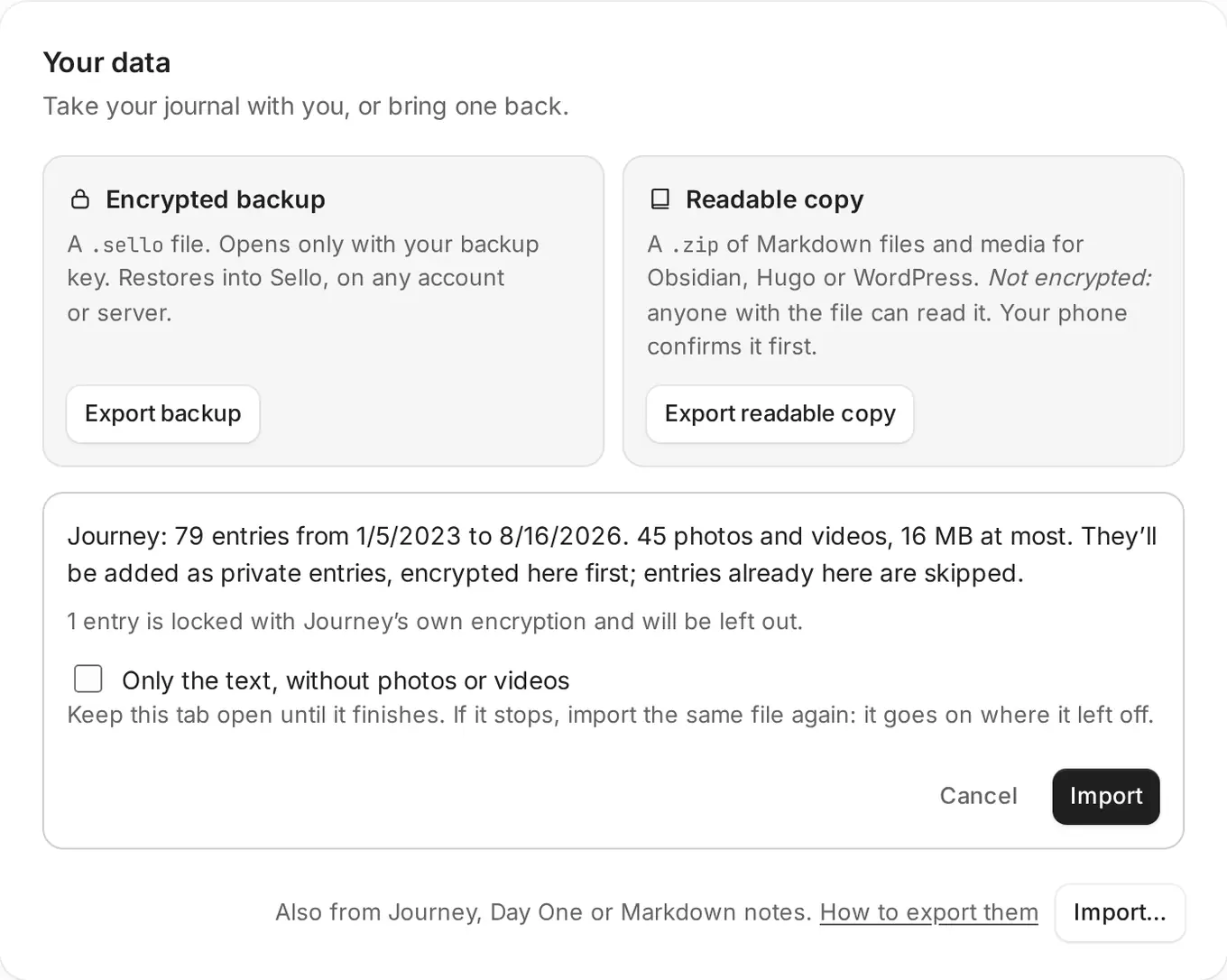
- Go to Settings › Your data › Import… and choose the ZIP.
- Check the summary: how many entries, from when to when, and the photos. Click Import and keep the tab open until it finishes.
What comes along
- Every entry, as a private entry with its original date and time.
- The text with its bold, italics, lists and links. Journey has no titles, so the first sentence becomes the title.
- Tags and photos. Photos are made smaller (up to 2560 pixels) and their location is removed before they’re encrypted.
What’s left out
- Entries locked with Journey’s own encryption.
- Files over your journal’s limit per file (10 MB). Photos are made smaller first, so this is mostly long videos.
- HEIC photos, which most browsers can’t open. Journey exports JPEG, so you’re unlikely to have any.
When it’s done, Sello lists anything it left out.
If it stops
If your journal fills up, or you’ve uploaded a lot in one day, the import stops and says why. Import the same ZIP again later: entries already in your journal are skipped, so it goes on where it left off. If your photos don’t fit, check Only the text, without photos or videos.
From Day One or notes
The same steps work for Day One and for a ZIP of Markdown or text notes, from Obsidian, Bear or Notion.
For a very large journal, or if you’d rather use a terminal, sello-import does the same from your computer.
Something missing or unclear? Write to us.