Places and the map
Keep where you wrote with each entry. Find it again by its place or on your map.
Add a place
- In the editor, tap Add place under the date. On the web it’s next to the date.
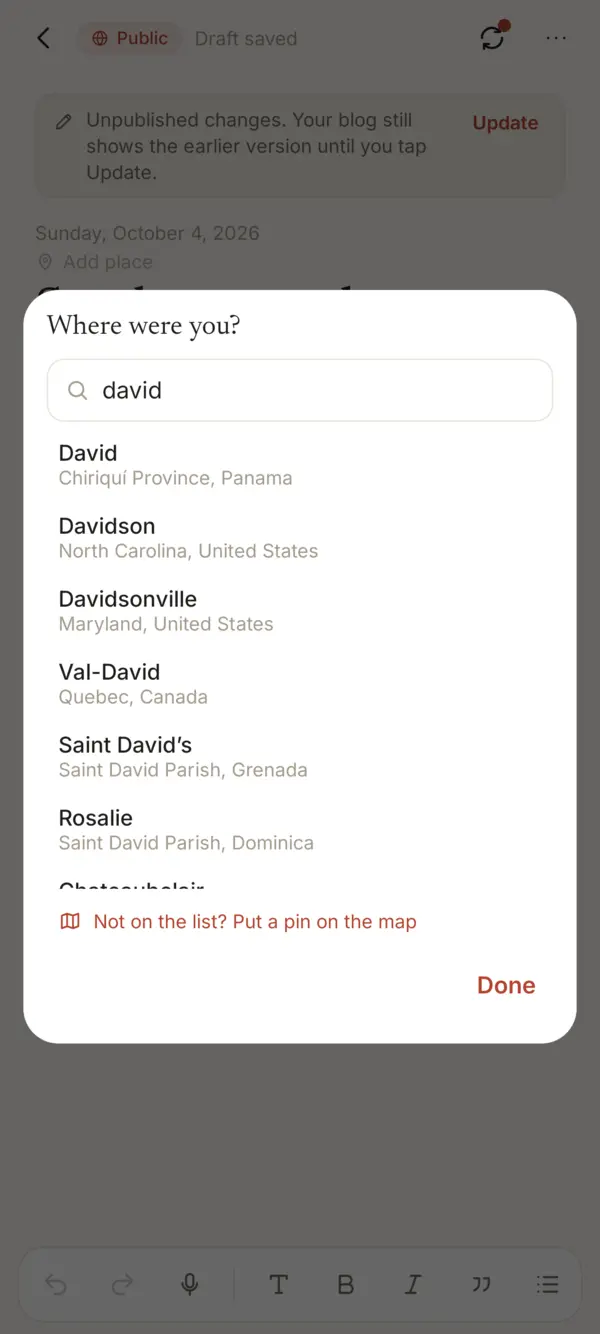
- Where were you? opens the picker. Type in Search a town or city and choose a result.
- The list comes with Sello and has towns of 5,000 people or more. Search works offline.
- Before you type, Recent offers places you used lately.
- To clear it, tap the place and choose Remove place.
Not on the list
Tap Not on the list? Put a pin on the map. In Put a pin on the map, tap where you were and fill in Name of the place. Tap Save. The country comes from where the pin is.
On your blog
When you publish an entry with a place, Show where you wrote it is off by default. Check it to show the name on your blog. On a published entry, tap the place and use Show it on your blog.
The blog shows only the name, for example “Boquete, Panamá”, never the exact spot. Making the entry private again removes it from the blog.
The map
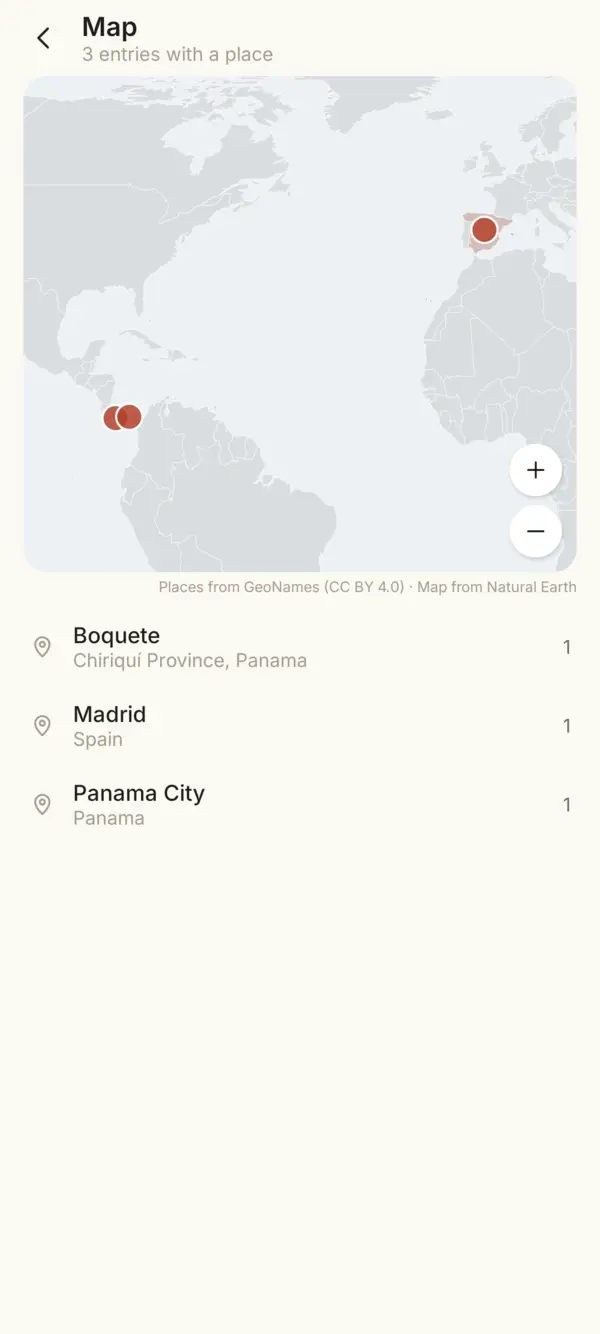
- On Android, tap the map button at the top of the home screen. On the web, choose Map in the menu.
- Each place has a pin. More entries make a bigger pin. Countries with entries are tinted.
- Tap a pin or a tinted country to list its entries.
- Drag to move. Pinch or use the + and - buttons to zoom.
Privacy
Sello never uses your phone’s location (GPS) and asks for no location permission. The place is encrypted with the entry. The map is drawn on your device, without a map service, so nobody learns where you wrote.
Something missing or unclear? Write to us.