Write an entry
Tap Write on the home screen. A new entry is private, and it saves on its own as you type.
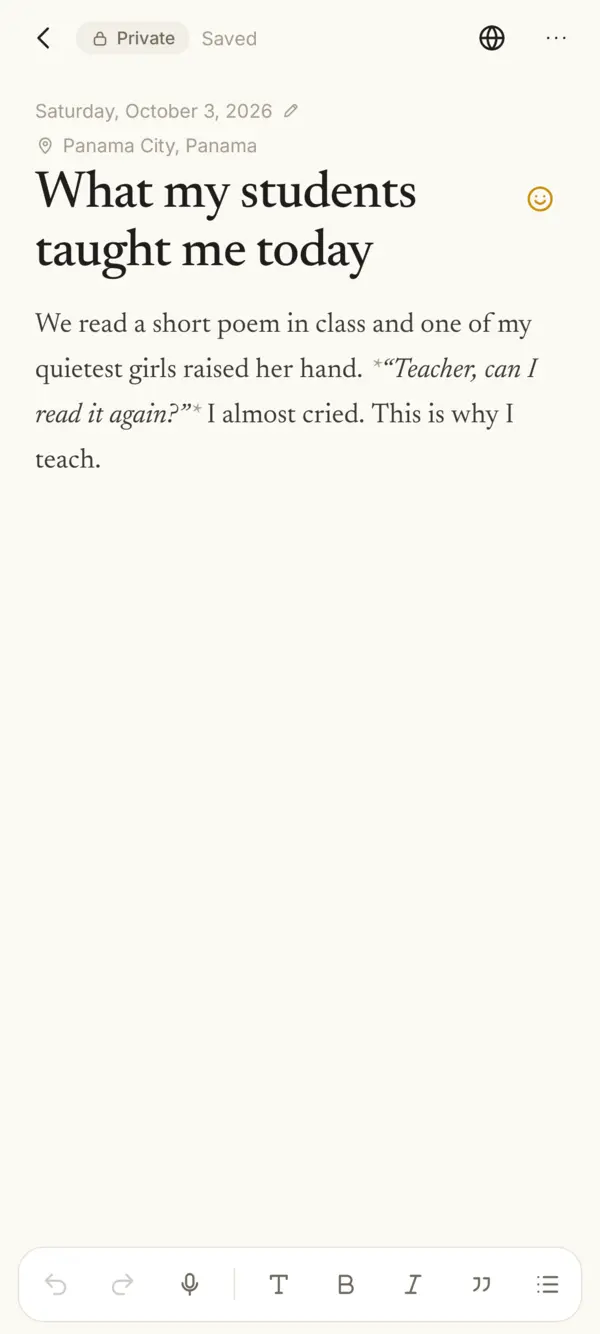
Text and formatting
The bar at the bottom adds headings, bold, italics, quotes and lists, with undo and redo. Tap T to make a heading. On the computer there are also links and dividers.
Checklist, after List, adds a checklist. On the web, tick the box. On Android, tap inside the [ ]. The reader shows boxes too.
Mood
Tap the face to the right of the title to choose Happy, Neutral, Sad, Confused, Tired or Love this. Remove mood clears it.
Your mood stays encrypted, even on a published entry. The blog never shows it. On a published entry it saves right away, without Update.
Place
Tap Add place under the date, or next to it on the web. Choose a town or put a pin on the map. Places and the map.
Dictation (Android)
- Tap the microphone in the bar and speak. The words go where the cursor is, a phrase at a time. Tap stop when you’re done.
- It works in the app’s language. The first time, the phone may ask to download its offline voice pack for that language.
- Your voice is turned into text on the phone itself. Sello doesn’t record or keep it.
- If it says “Listening…” but no words appear, restart the phone. The phone’s voice service sometimes gets stuck, often right after downloading a language pack.
Photos and videos
- Tap Photo or video and pick from your gallery. You can also paste one.
- In a private entry they’re encrypted on your phone, like the text.
- An entry has room for a few, and each file has a size limit. Sello tells you if one doesn’t fit.
The date
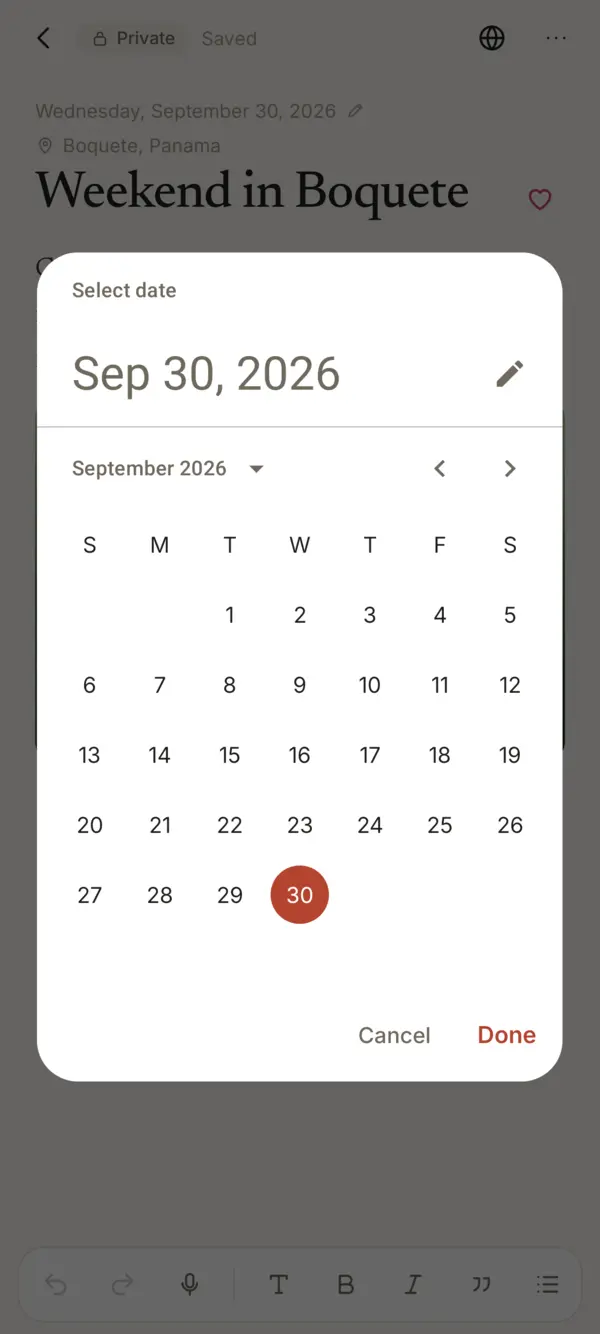
A private entry takes today’s date. To write about another day, tap the date under the title and pick one. Published entries keep their date.
Without a connection
Keep writing. Entries and photos save on your phone and upload when you’re back online.
You can also save from your chats in ChatGPT, Claude or Gemini. How.
Changed your mind?
- More › Earlier versions shows how the entry looked before, kept for 30 days. You can restore one.
- More › Delete entry moves it to the trash for 30 days. Settings › Your data › Trash brings it back.
Something missing or unclear? Write to us.